Overview
Stencils are an amazing way to transform your line drawings into refined masterpieces. Stencils work like blocks or stamps and in seconds you can enhance your plans, sections, axons, or perspective sketches by adding in people, trees, furniture, diagram arrows, and more. They're great for architecture, interior design, landscape design, industrial design, and any other creative pursuit.
Landscape design drawing by Barbara Dokshina.
How to Get Started with Stencils
Step 1. Open Your Stencils
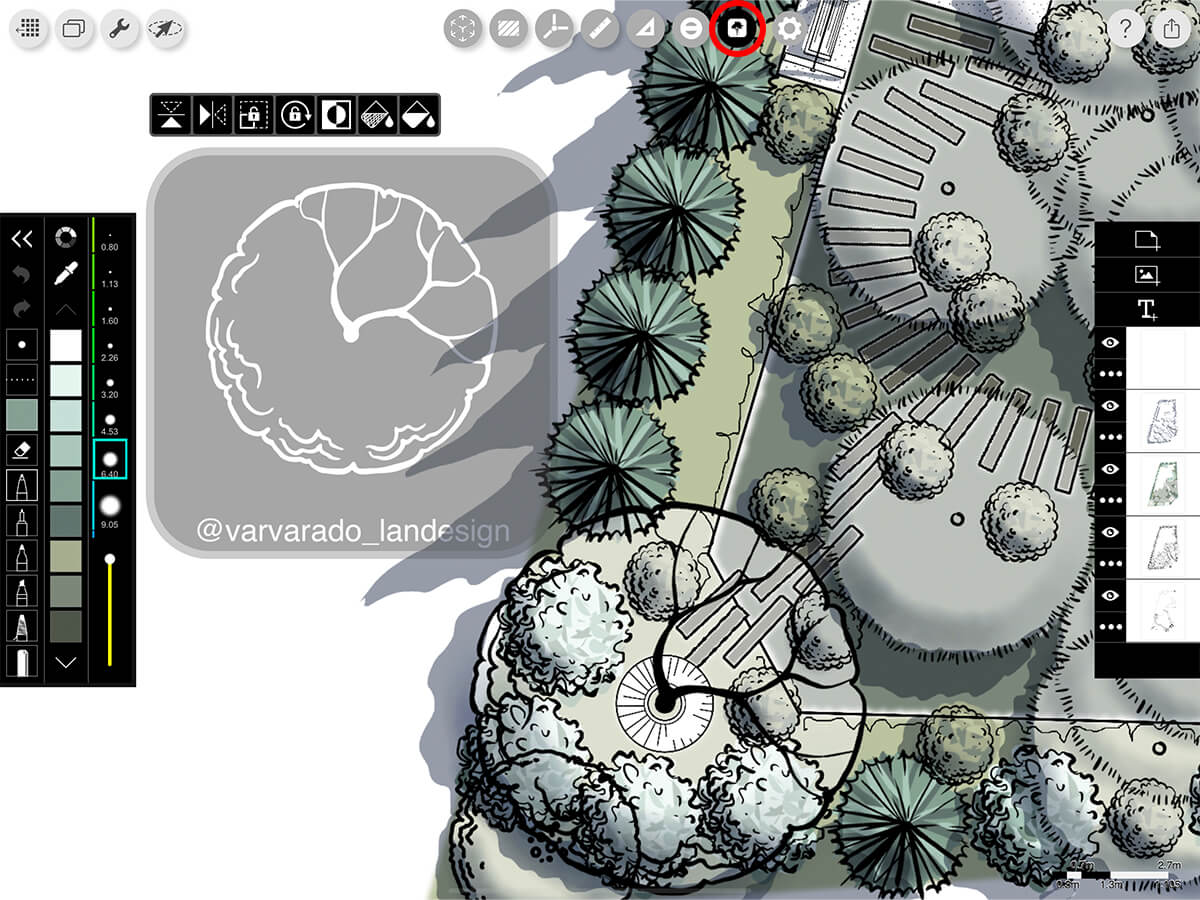
Tap the Stencil button to open your stencil.
Step 2. The Stencil Library
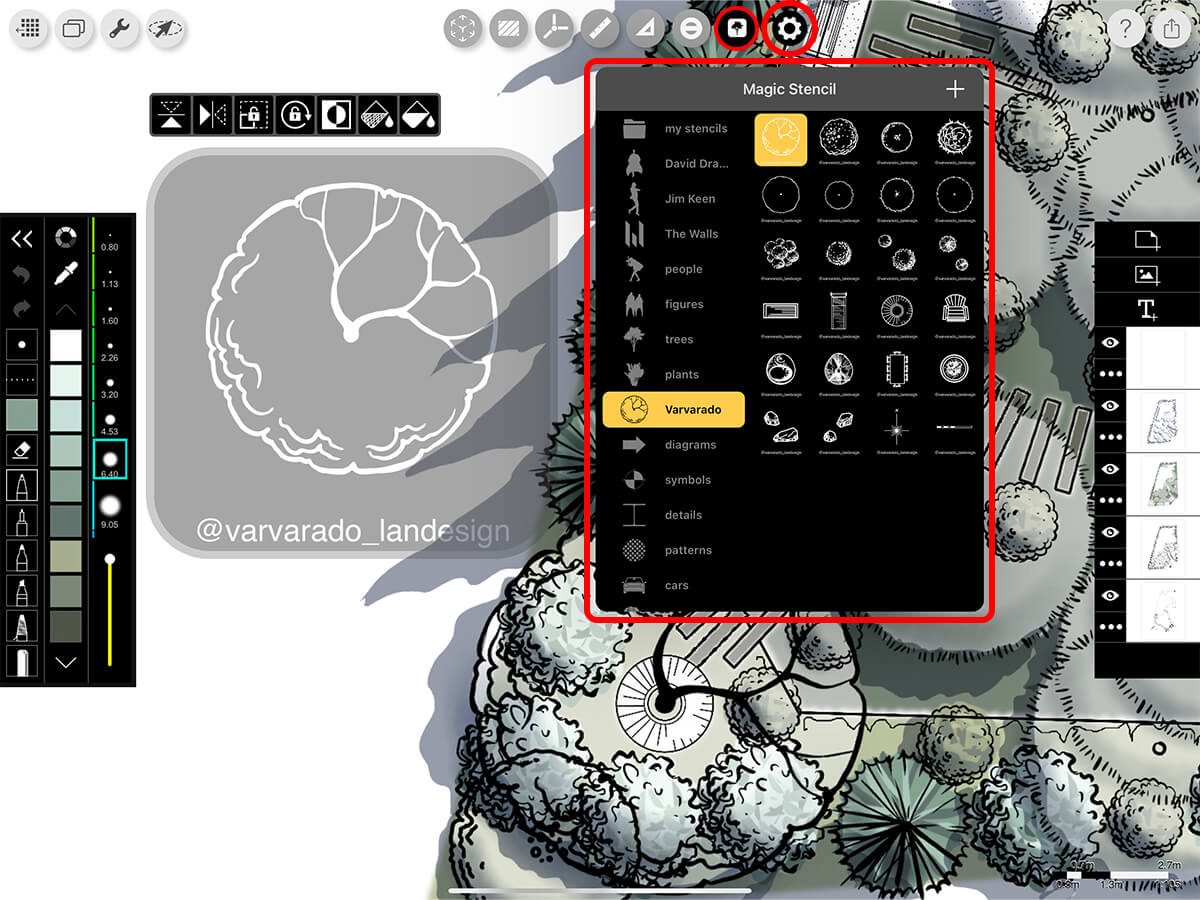
Morpholio has hand-curated an extensive collection of stencils for every design discipline.
Don't see the stencils that you need? Learn how to make custom stencils from any image here.
Step 3. Move, Place, and Transform
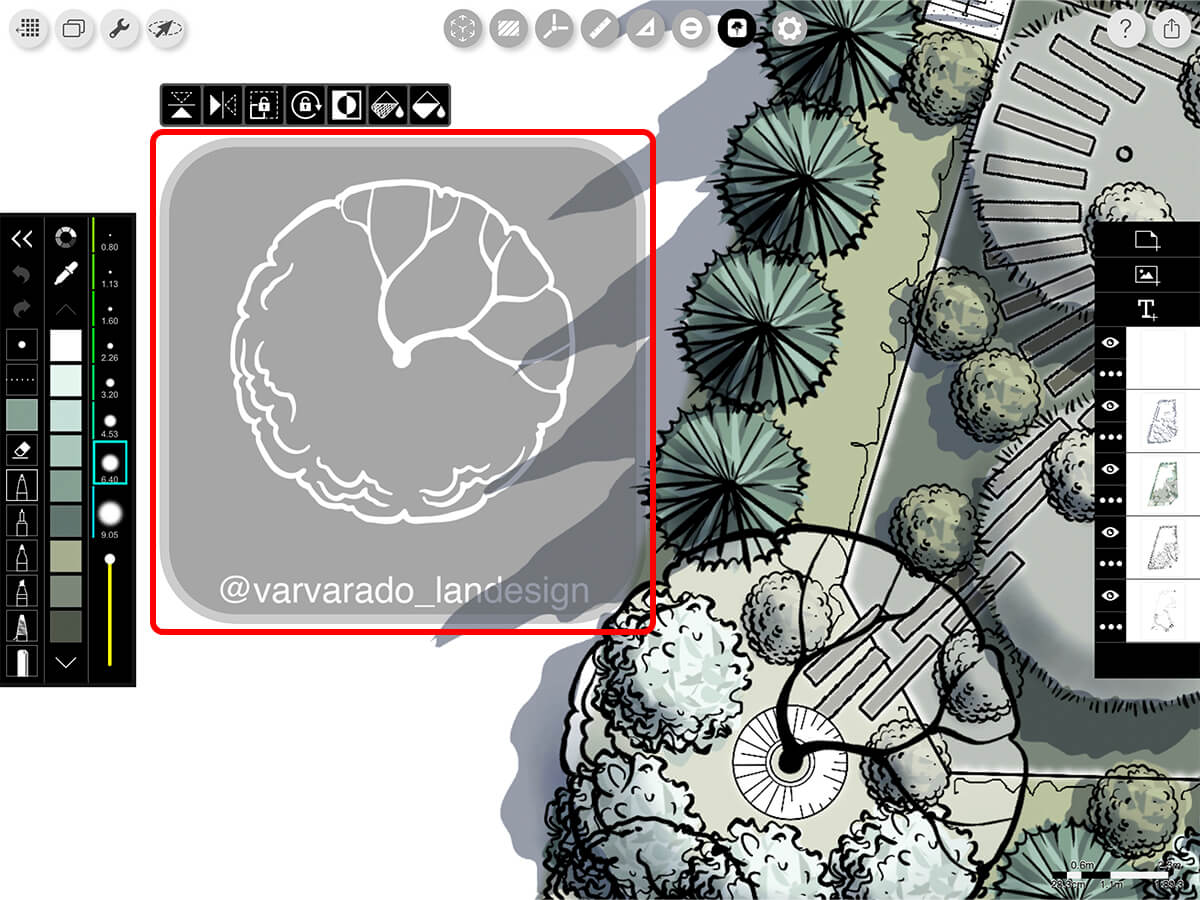
Resize, transform, mirror and invert your stencil.
Pro Tip
Stencils do not scale automatically. Sometimes, it helps to draw a reference line with your ruler so you know how large to resize your stencil.
Size & Place
Use a two-finger pinch to resize your stencil. Use a one-finger press and drag to move your stencil.
Mirror
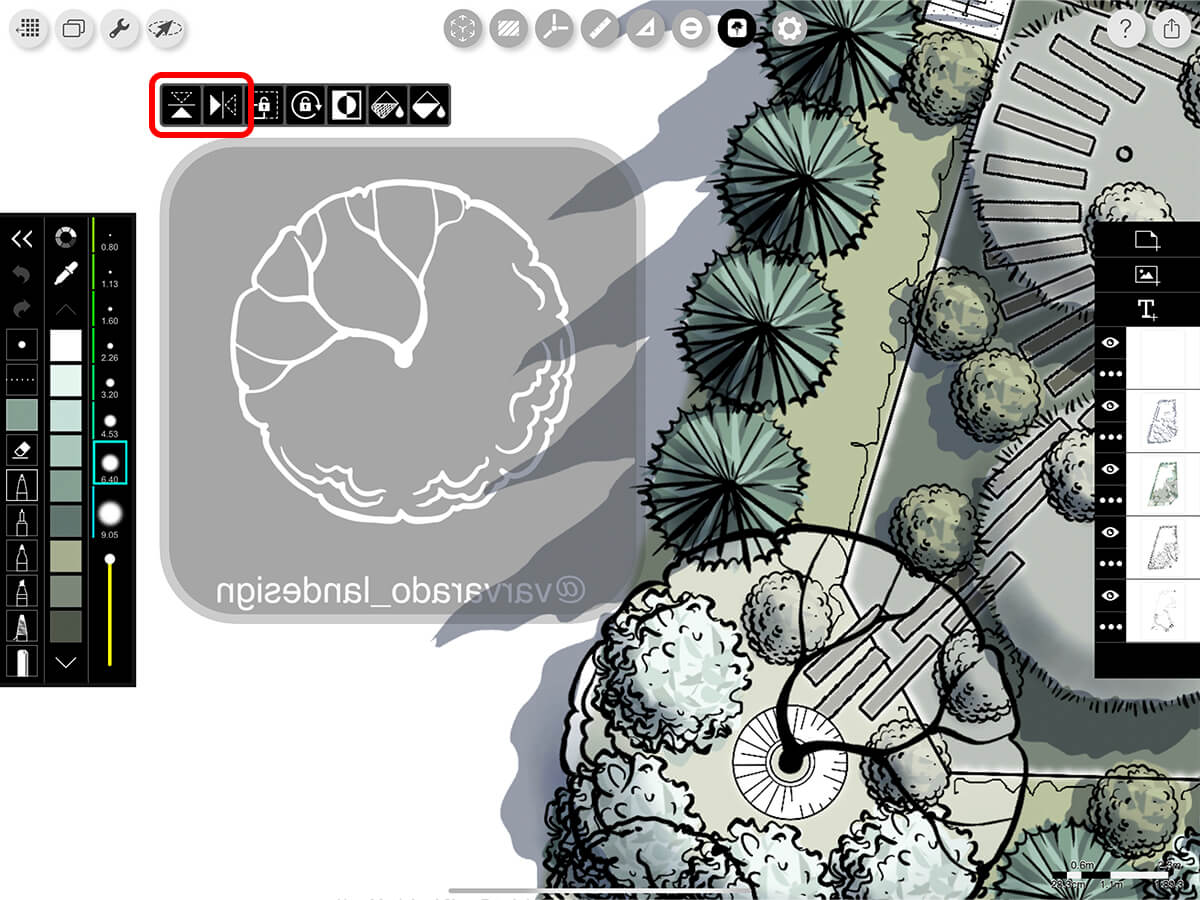
Flip your stencil vertically or horizontally.
Invert
Invert your stencil to fill the opposite part.
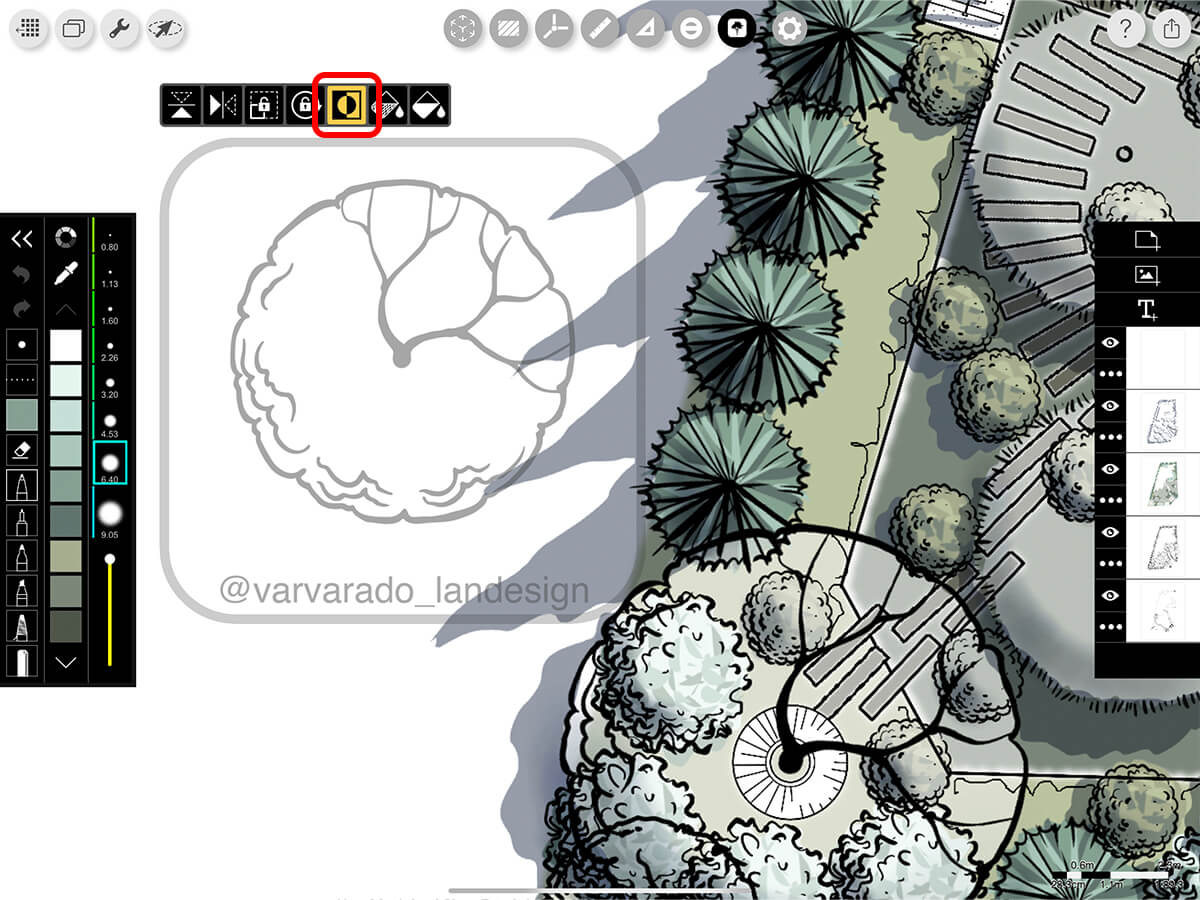
Step 4. Color Your Stencil
Use your Pencil to fill the stencil with pen strokes or you can use the Auto-Fill buttons for quick fills.
Pro Tip
If your stencil doesn't fill properly, zoom in to the area where you want to add a new stencil and then add a new layer. This will give you higher resolution and help you fill in the stencil!
Pen Fill
Use your current pen to fill your stencil.
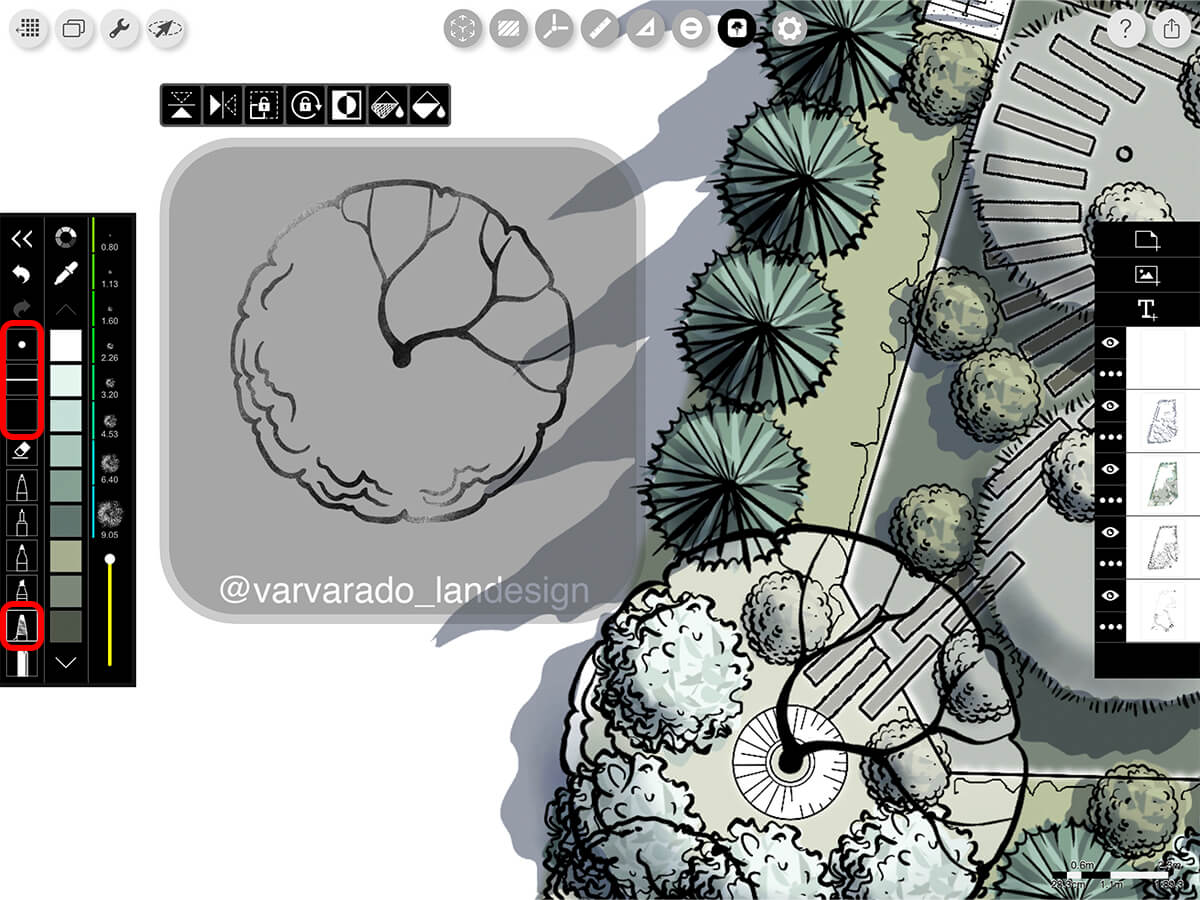
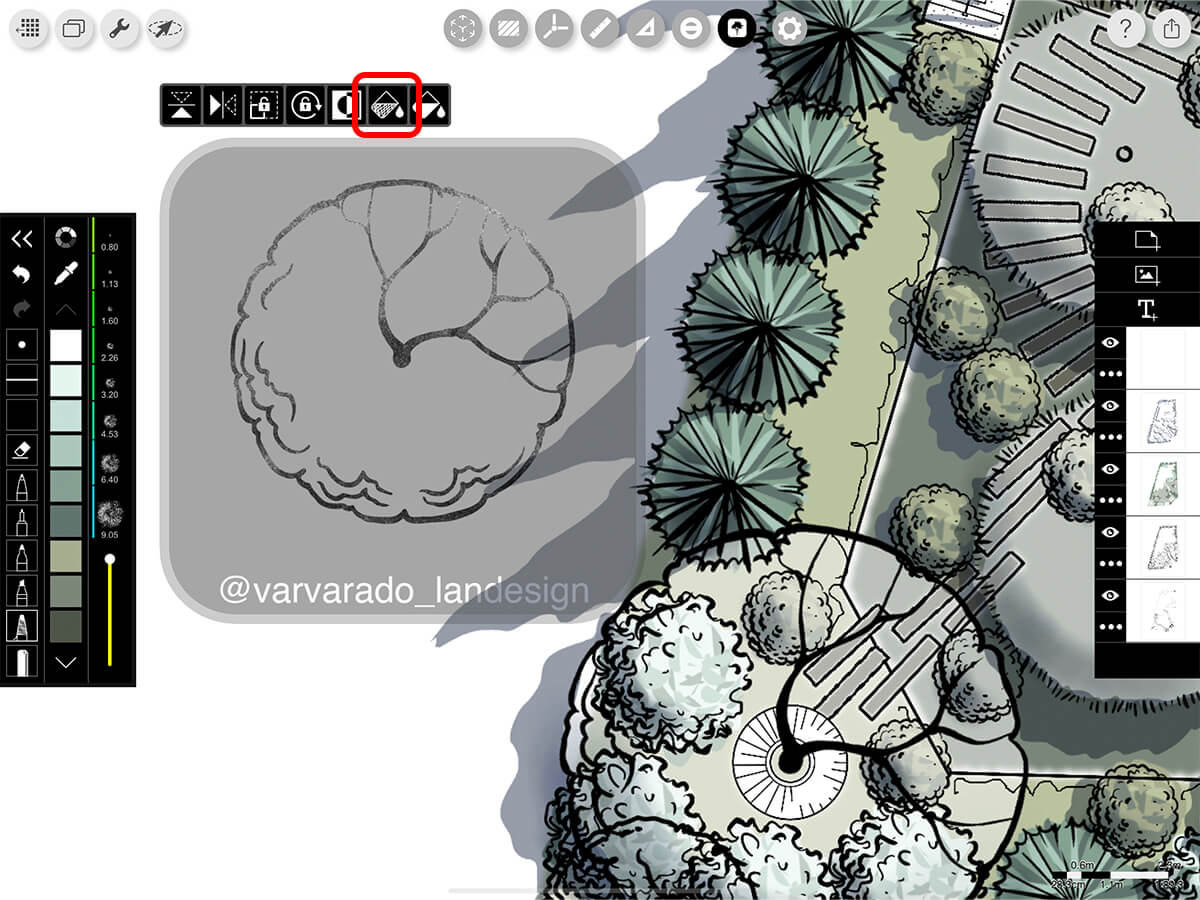
Pen Auto-Fill
Auto-fill your stencil using your current pen settings.
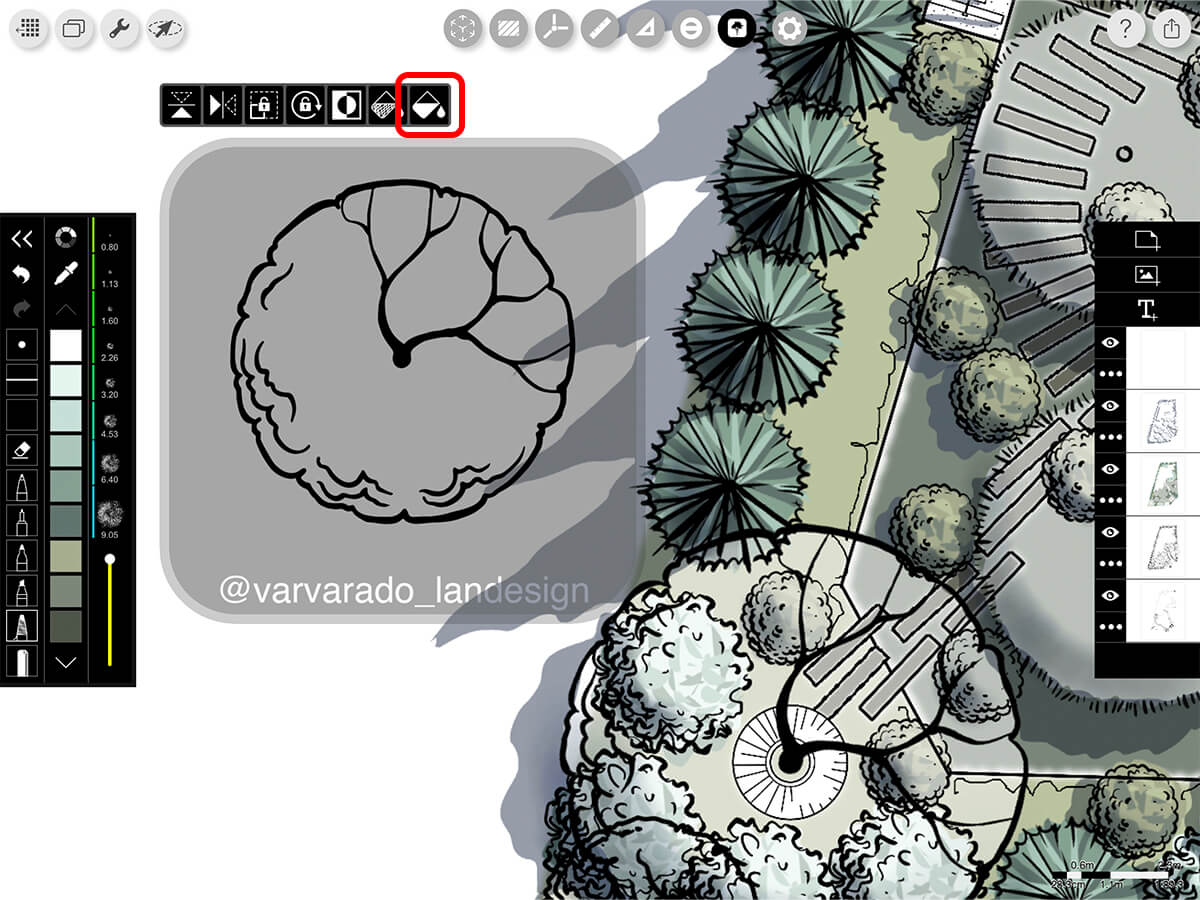
Solid Fill
Auto-fill your stencils with the solid color selected with your current pen.
Step 5. Maintain Your Stencil Size
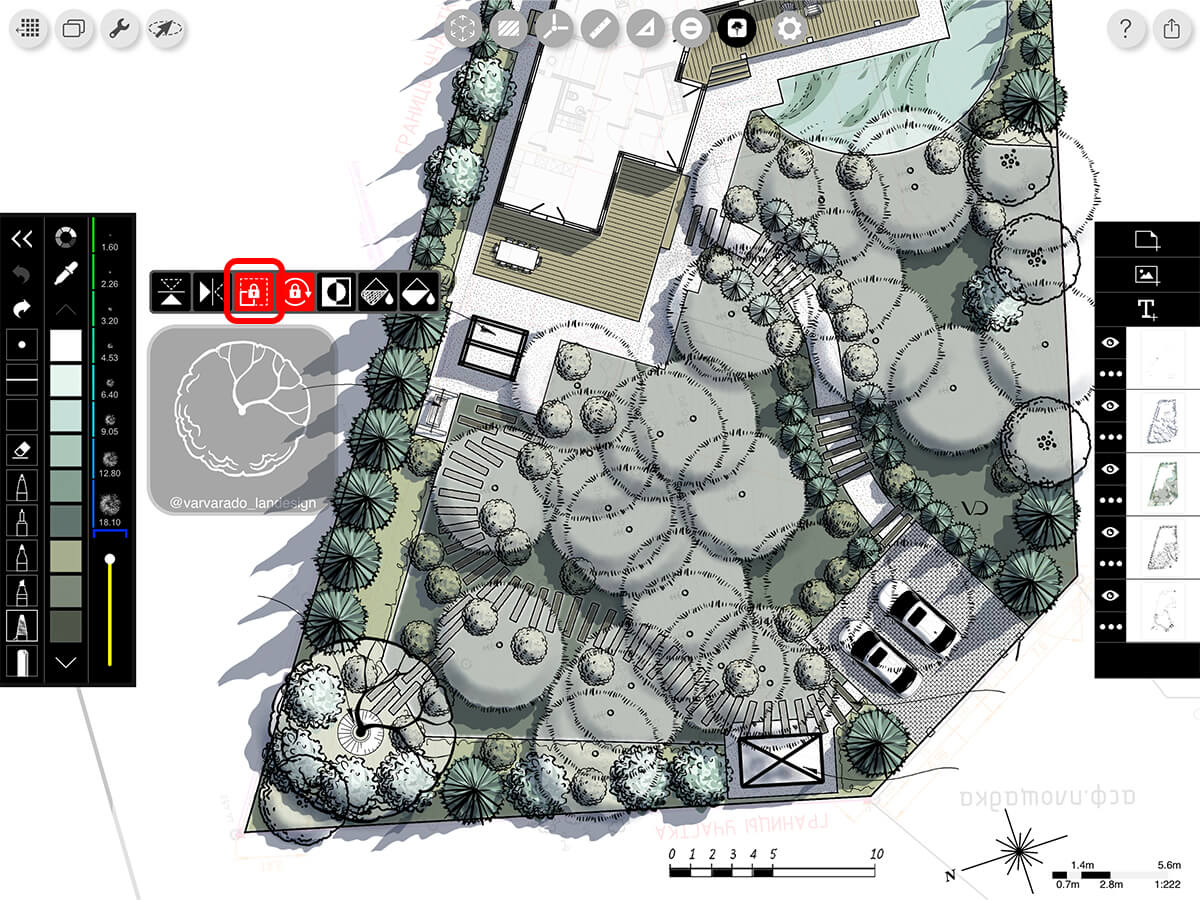
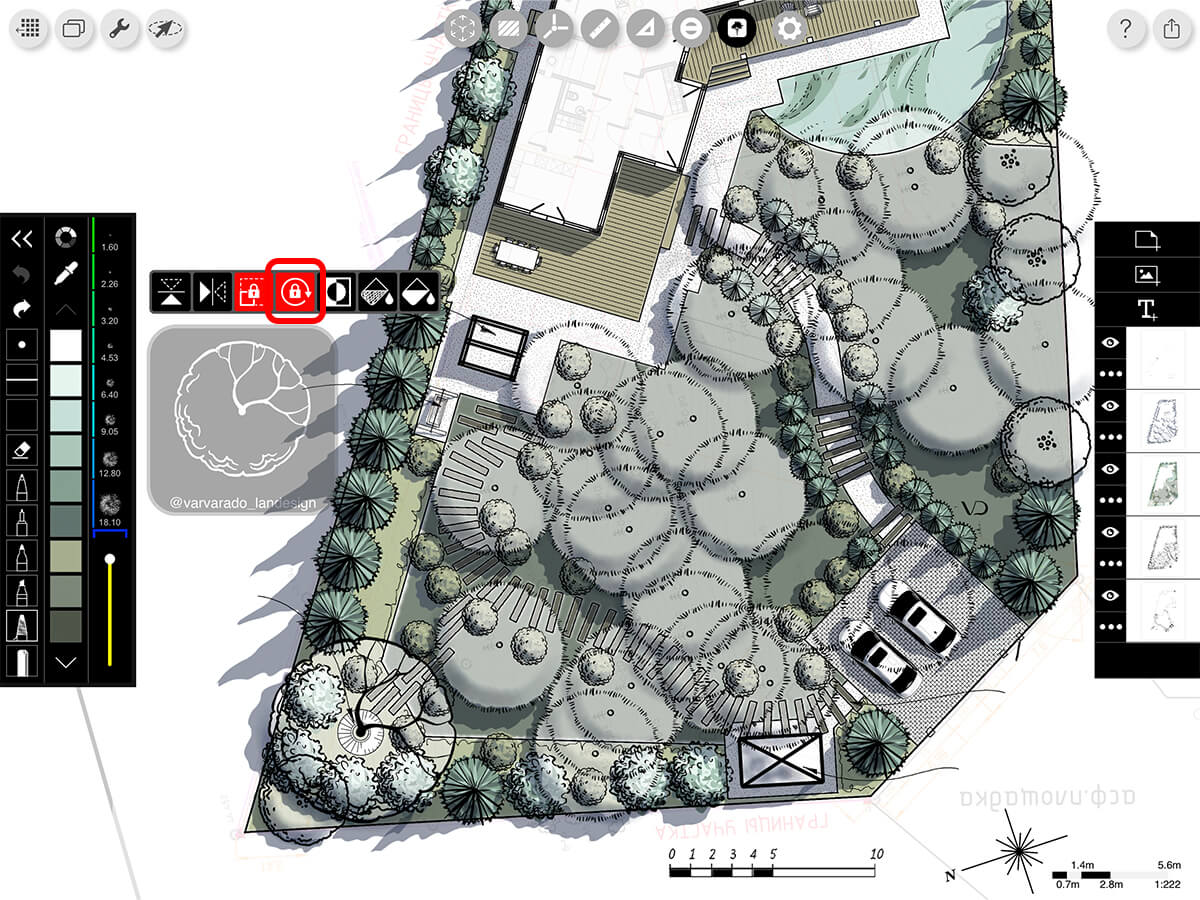
If you want to move the same stencil around your drawing without resizing it, you can lock its size and rotation.
Size Lock
Lock the size of your stencil. When you zoom in and out, your stencil will keep its scale.
Rotation Lock
Lock the stencil from rotating.
How To Video
Enjoy this how to video highlighting how to use stencils.
Additional Resources
How to Make Amazing Trees and Shadows
New Sustainability, People Entourage, and Scale Figure Stencils
About Morpholio Trace - Sketch Cad
Why Morpholio Trace for Architects, Landscape Architecture and Interior Designers?
Awarded Best Apps for architects, landscape architects, and interior designers, Trace is the dream sketch cad and architecture drawing software. Featured as both, the best app for iPad Pro and the best app for Apple Pencil, Trace combines the beauty and speed of sketching with the intelligence and precision of CAD. Whether you’re drawing project concepts, sketching through schematic design and designing architectural details, or just drawing on-site visits through construction administration and making high-res PDF drawing set markups, Morpholio Trace is everything you need for your new favorite architect app, landscape design app, or interior design app all in one. Welcome to the new best drawing app for iPad Pro.
Morpholio Trace Ecosystem
Morpholio drawing apps are not only named as the best app for architects, best app for architecture, best app for interior design, best design app, best app for landscape architects, and best app for iPad Pro, but they also now work as a perfect complement to, and seamlessly with your favorite architectural software, architecture apps, cad software, cad app, and interior design software. This includes Autodesk AutoCad, TinkerCad, Revit, SketchUp, SketchUp Viewer, Rhino, Pinterest, Adobe Photoshop, Shapr3D, UMake, and many more. In addition, your Apple iPad Pro, iPhone, and Apple Pencil will never be more exciting to use as Morpholio’s suite of drawing, design, and sketching apps become even more essential in your design process.